Windows Timeline is gone — and nothing replaced it
Windows 10 shipped a Timeline in 2018: press Win+Tab and you saw not just your open windows, but a scrollable history of documents and pages from the past 30 days. It was one of the few features that understood something important about how people work — that we often remember when we did something long before we remember what the file was called.
Microsoft retired it. Timeline was removed from Windows 10 with the 2021 update and never made it into Windows 11 at all. What remains is thin:
- Quick access in File Explorer — shows a handful of recent files with no dates, no history beyond the last few, and no way to go back a month.
- The Recent folder (
shell:recent) — a folder of shortcuts, capped, with no grouping by day and no idea what you did with the files. - "Recent" in Office — only Office documents, and only the ones opened through Office.
None of them answer "show me Tuesday". A search box cannot either: search needs a name, and the whole problem is that you do not have one.
🕒 Get the timeline back
Day-by-day, months and years back, on your own PC.
Download Deskora for freeWhat Deskora's Timeline tab does
Open the Timeline tab and you get a single chronological list, split into the sections people actually think in: Today, Yesterday, earlier this week, last week, this month, last month — and beyond that, month by month and year by year. Scroll to the bottom and the next stretch of history loads.
📄 Files, with what happened to them
Each row shows the file name, its full path, the time of day and what happened: opened, created, changed, downloaded or deleted. A file you deleted stays in the list, clearly marked — "deleted yesterday" is an answer, and a missing row is not.
⏳ Reaches back years, not 30 days
Deskora merges its own activity record with the timestamps of the NTFS index it already maintains for instant search. That means the timeline does not start on the day you installed it — it reaches back as far as your file system does.
🎚️ Filter by category and by event
Narrow the period down to images, video, music, documents, archives or programs, and to what happened: only downloads, only newly created files, only what you changed. There is a free-text filter for the period as well.
📊 Which program ran, and for how long
A day view of program usage: how long each application was in the foreground. Deliberately without scoring, daily goals or a verdict on how you spent your time. It is there to jog your memory, not to grade you.
🧹 No noise
Temporary files, caches, log files, build intermediates and system folders never appear. A timeline full of AppData is worthless — it answers "what did I work on" with what your programs did in the background.
🖱️ Works like the rest of Windows
Double-click or Enter opens the file, Shift+Enter opens the folder around it, right-click opens the normal Windows context menu. Nothing new to learn.
When you actually need this
"I sent it to someone — but from where?"
You attached a quote to an email on Thursday. The mail client remembers the attachment name; you do not, and the original is somewhere in a folder you created that morning. The timeline shows Thursday, and the file is right there with its full path.
"Which downloads were from that research session?"
Two hours of downloading datasheets and PDFs, saved to five different folders. Filter the day down to downloaded and you have the complete list — Deskora recognises files that came from the internet by the same marker Windows itself uses.
"What did I do last Wednesday?"
Filling in a timesheet, writing a status report, or reconstructing a day for a client. The file list plus the program day view gives you the shape of the day without you having to remember it.
"I know I changed it — did I save it in the right place?"
The same file often exists in three places. The timeline shows which copy was actually touched, and when, so you can tell the working file from the stale duplicate.
Your history stays on your PC — and you can switch it off
A timeline of your own work is sensitive data. It deserves a straight answer, so here it is.
- Nothing is transmitted. The record lives in one readable text file on your PC (
%APPDATA%\Deskora\activity.tsv). It is never uploaded, never shared, and not part of a crash report. It is plain text on purpose — a promise that data stays local should be verifiable by simply opening the file. - Recording can be switched off entirely, with one switch in the tab itself. Not three clicks deep in a settings dialog.
- The history can be deleted — all of it, or just the period you are looking at. Deleting removes the file from your PC; it is not merely hidden from the view.
- It expires on its own. 90 days by default, adjustable from 7 to 365. Older entries are removed automatically, and there is a hard cap on how much can accumulate.
- Folders and programs can be excluded permanently. Name a folder as "never record" and it is not only ignored from then on — what was already recorded from it is removed immediately.
- No accounts, no telemetry, no profiling. Deskora has no user accounts and no analytics service that this data could feed. It is not analysed, not scored, not sold.
The tab says all of this on its own surface: a line stating that the data stays on this device is permanently visible, and the first time you open the tab you get a short, plain explanation of what is recorded and how to turn it off.
How is this different from a file search?
Search and timeline answer different questions, and neither substitutes for the other:
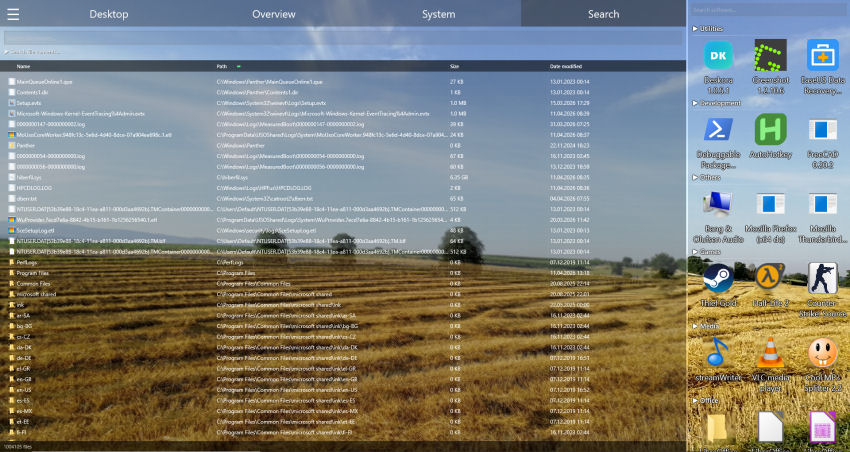
- Search needs a name, or at least a fragment of one. It is the fastest way to a file you can name — and Deskora's search tab does that instantly across every local drive.
- Grouping sorts by type: documents here, images there. Useful for tidying up, useless for remembering.
- The timeline sorts by the thing people actually remember: the day. It is the only one of the three that works when you have forgotten the name entirely.
Frequently asked questions
Does the timeline only start once I install Deskora?
No. Deskora's own activity record starts with the installation, but the timeline also reads the timestamps of the NTFS index it maintains for instant search — and those reach back as far as your files do. On a PC that has been in use for years, you will see years of history from day one, growing more detailed from the moment Deskora is installed.
Does this slow my PC down?
No. The timeline is built only when you open the tab, on a background worker, and nothing runs for it while the tab is closed. It reuses the index Deskora already maintains rather than scanning your drives a second time.
What exactly is recorded?
Files you open, create, change, download or delete — with their path, the time, and the program involved — plus how long programs were in the foreground. No keystrokes, no window contents, no screenshots, no browsing history, no clipboard.
Can I stop it recording a particular folder?
Yes. Under Settings › Activity you can list folders and programs that are never recorded. The rule takes effect immediately and also removes anything already recorded from those folders.
Is this like Windows Recall?
No. Recall takes periodic screenshots of your screen and analyses them. Deskora records a list of file paths and program names with timestamps, nothing more, and it never captures your screen. It also does not send anything anywhere, and it can be switched off completely.
Does it work on Windows 11?
Yes, on Windows 10 and Windows 11 (64-bit), on local NTFS hard disks and SSDs; network drives are not indexed. Deskora is set up through a standard Windows installer in under 30 seconds, is free, needs no account, and contains no advertising.
🕒 Find it by when you worked on it
Free, no account, and the history never leaves your PC.
Download Deskora for free