What is annoying about the Windows 11 Start menu
People coming from Windows 10 mostly miss control. The most common complaints:
- The "Recommended" section. It shows recent files, new apps and at times promotions for Microsoft services – space your own programs do not get.
- No custom groups anymore. The tiles and named groups from Windows 10 are gone. Folders for pinned apps exist, but they are no substitute for real organisation.
- "All apps" as a long list. With 80 installed programs Start becomes a scrolling contest, sorted alphabetically instead of by importance.
- Search with detours. Depending on settings, the built-in search mixes web results, Store suggestions and local hits.
- Many clicks to system tools. Device Manager, power options or the classic Control Panel are buried several levels deep.
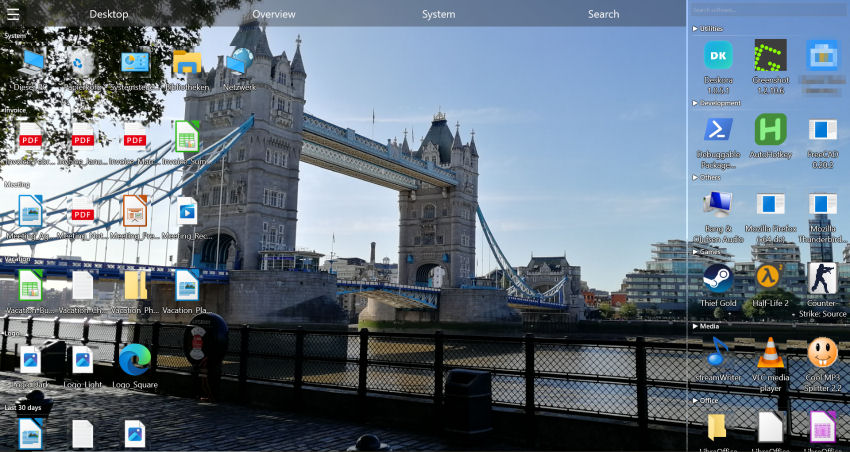
Tools like Start11 or Open-Shell recreate the old Start menu. Deskora takes a different route: it makes Start simply unnecessary for everyday use.
🚀 Launch programs without Start
Win+Space, two letters, Enter – or the software overview that puts your most important programs first.
Download Deskora for freeWhat Deskora offers instead
⌨️ Quick search over any window
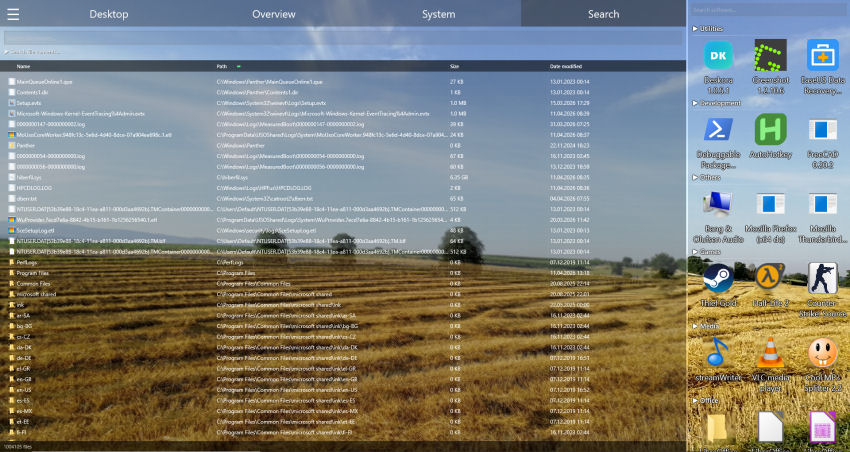
Win+Space opens a search box on top of the current application. It finds programs, files, folders, desktop items and Windows locations such as Documents or This PC, and opens the result immediately.
🧠 Learns what you open
If you always pick Photoshop for "ph", Photoshop moves to the top. Launches, run time and last use feed into the ranking – learned and stored only on your PC.
🗂️ Software overview in categories
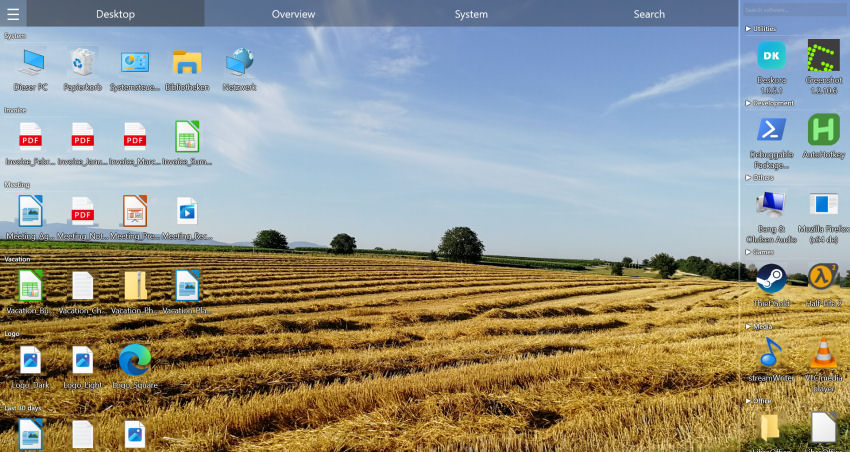
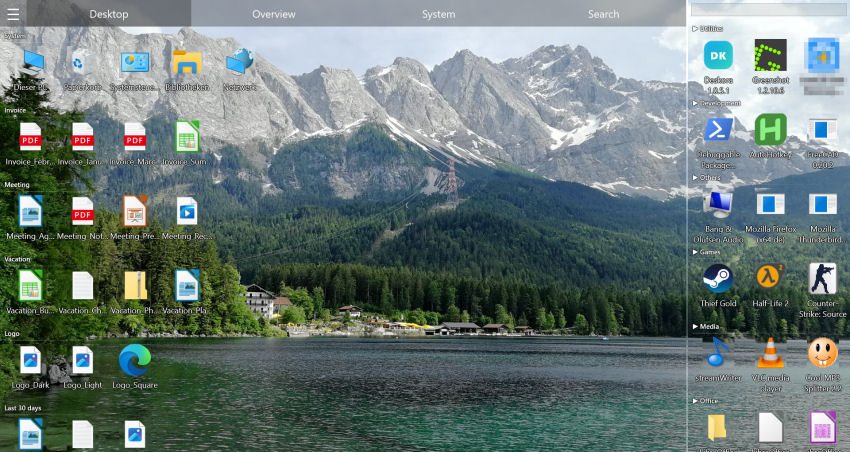
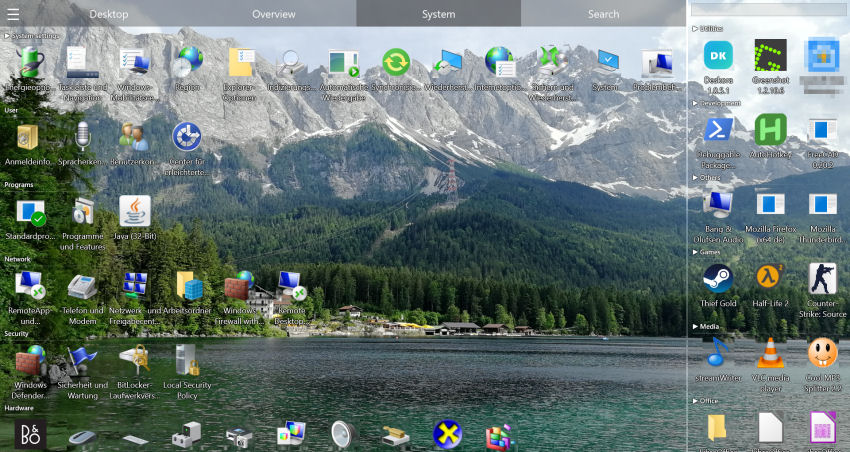
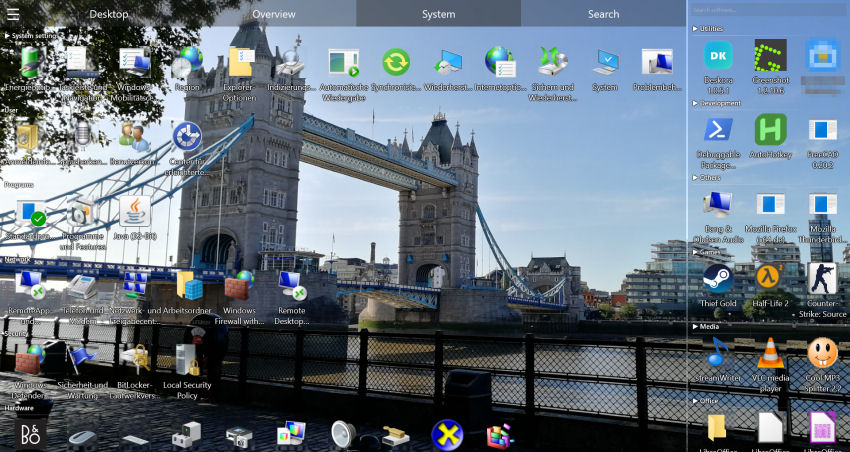
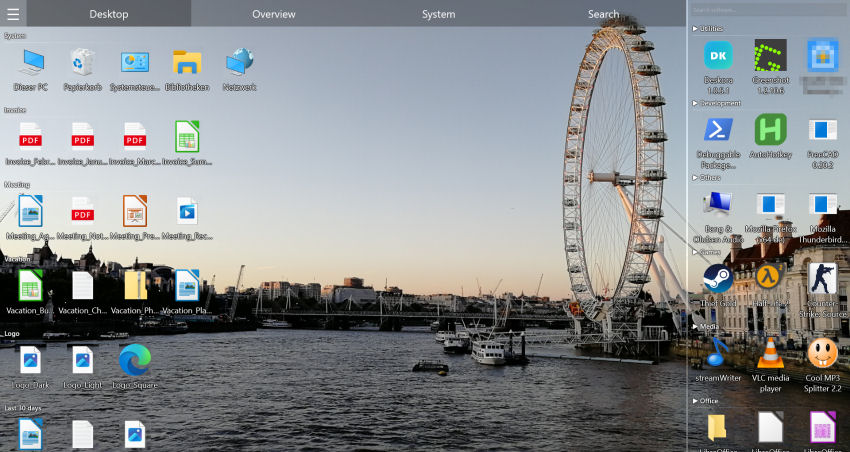
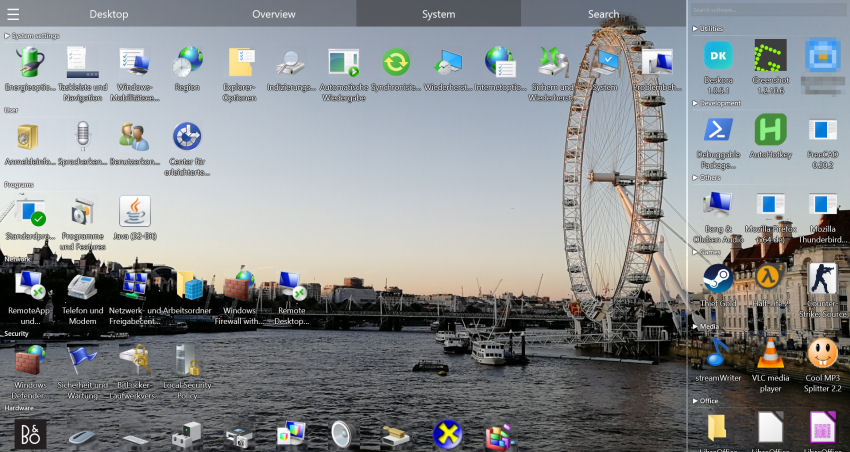
All installed programs and apps appear in groups such as Browsers, Office, Graphics, Development or Games. Recently used programs come first, important groups sit higher.
⚙️ System tab
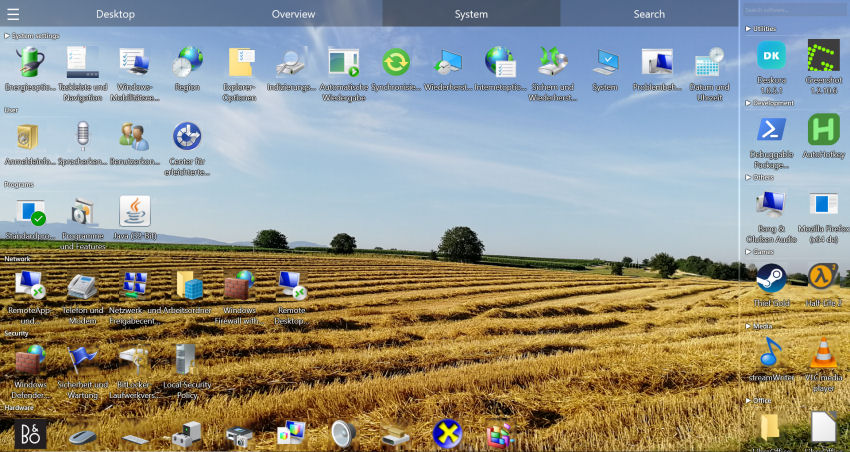
Control Panel, Device Manager, network and power options and other Windows functions in one place – without clicking through the Settings app.
🎯 Prefixes for power users
Type > to search programs only, f for file names, c for document contents. Ctrl+Enter launches a program as administrator, Shift+Enter shows a file in File Explorer.
🚫 No recommendations, no ads
Deskora shows only what is on your PC. No suggested apps, no web results, no service promotions.
Deskora vs. Windows Start vs. classic Start replacements
| Deskora | Windows 11 Start | Classic Start replacement | |
|---|---|---|---|
| Programs sorted by usage | Yes | No | Partly |
| Automatic categories | Yes | No | Manual groups |
| Search over any window | Win+Space | Windows key | Windows key |
| Find files on every drive | Yes, NTFS index | Indexed locations only | Usually Windows Search |
| Recommendations or ads | No | Yes, can be turned off | No |
| Price | Free | Included in Windows | Partly paid |
To be fair: if you want the look of the Windows 7 or Windows 10 Start menu back, a classic Start replacement suits you better. Deskora does not change Start; it offers a faster way around it.
Setting up the switch
- Download and install Deskora – no account, under 30 seconds.
- Open the software overview: Deskora assigns your installed programs to categories automatically.
- Press Win+Space, type the first letters of a program and launch it with Enter.
- If you currently use Win+Space to switch keyboard layouts, use Alt+Shift for that instead, or set a different shortcut for quick search in the settings.
- Optionally reduce the "Recommended" section under Settings › Personalization › Start, so Start stays tidy for the rare occasions you use it.
Improving the Windows 11 Start menu without extra software
You can get a lot more out of Start even without Deskora. These settings under Settings › Personalization › Start and Taskbar are worth changing:
- "More pins" layout. Shrinks the Recommended section in favour of your pinned apps.
- Turn off recommendations. Disable "Show recently added apps", "Show recommended files" and "Show recommendations for tips and new apps".
- Folders next to the power button. Under "Folders" you can show Settings, File Explorer, Downloads or Documents as icons.
- Group pinned apps. Drag one app onto another to create a folder – a stand-in for the Windows 10 tile groups.
- Align Start to the left. Under Taskbar › Taskbar behaviors › "Taskbar alignment", choose "Left" if you want the familiar Windows 10 position.
Web search in Start can be limited through the search privacy settings; Microsoft is expanding these options step by step in 2026.
Keyboard shortcuts that make Start unnecessary
Many routes through Start have a direct shortcut in Windows. Together with Deskora's quick search they cover almost everything:
| Shortcut | What it does |
|---|---|
| Win+Space (Deskora) | Search and open programs, files, folders and Windows locations |
| Win+1 to Win+9 | Launch or switch to the program pinned at that taskbar position |
| Win+X | Quick link menu with Device Manager, Disk Management, Terminal and power options |
| Win+I | Open Settings |
| Win+E | Open File Explorer |
| Win+R | Run dialog, e.g. for control, devmgmt.msc or cleanmgr |
| Ctrl+Shift+Esc | Open Task Manager directly |
Which solution suits whom?
Keyboard people
If you type rather than click, you do not need Start. Win+Space with Deskora plus the Windows shortcuts above is the fastest route to any program.
Mouse users with lots of programs
Deskora's software overview shows every program by category and usage – instead of an alphabetical list you have to scroll.
Switchers who want the old look
If you want the Windows 7 or 10 Start menu look back, choose a classic Start replacement. Deskora can still run alongside it for search and overview.
Locked-down work PCs
Where you cannot install software, the Windows settings and shortcuts above still apply – they need nothing extra.
Last updated: September 2026 – checked against the current version of Windows 11.
Frequently asked questions
Is there a free alternative to the Windows 11 Start menu?
Yes. Deskora is free and replaces the everyday route through Start with a Win+Space quick search and a software overview sorted by usage. Start itself stays unchanged.
Does Deskora modify the Start menu or taskbar?
No. Deskora does not touch Start or the taskbar. It only detects where the taskbar is so its own interface does not slide underneath it.
Can I change the quick search shortcut?
Yes. A different combination can be set on the Quick search tab in the settings. If another program already uses it, Deskora shows a notice.
Are my searches sent anywhere?
No. Search, ranking and learning run entirely on your PC; the learned counters never leave your machine.
Does quick search find Store apps?
The software overview shows installed programs and apps. Besides programs, quick search also finds files, folders, desktop items and Windows locations.
How do I remove "Recommended" from the Windows 11 Start menu?
Under Settings › Personalization › Start, turn off recently added apps, recommended files and tips and new apps, and choose the "More pins" layout. Depending on the Windows version the section may not disappear completely, but it becomes much smaller.
Can I move the Start menu back to the left?
Yes. Under Settings › Personalization › Taskbar › Taskbar behaviors, set the alignment to "Left". The Start button and menu then sit in the corner as in Windows 10.
Does Deskora run on Windows 10?
Yes, on 64-bit Windows 10 and Windows 11. Deskora is free, needs no account and contains no ads.
Every key and prefix is explained in the guide to file search with a keyboard shortcut. If you want to replace Windows file search too, continue with the Windows Search alternative.
🚀 Faster than Start
Free, no account, no recommendations – your programs right where you need them.
Download Deskora for free