Why "analyze disk space" usually means "wait for a scan"
Every disk space tool has the same problem to solve first: it has no idea what is on your drive until it walks the entire directory tree, file by file, folder by folder. On a drive with a few million files, that walk takes real time — often several minutes, sometimes tens of minutes on a large NAS-attached volume or an old spinning disk. You start the tool, you wait, and only then do you get an answer to "where did my space go?"
- TreeSize and WizTree — WizTree is fast because it reads the NTFS Master File Table directly instead of walking folders, which is the right idea. But it still has to read and parse that table fresh, every single time you open it.
- WinDirStat — walks the file system the traditional way, which is noticeably slower on large volumes.
- Deskora — does not scan at all when you open the Storage tab. It reuses the NTFS index that Deskora's background indexer already maintains for instant file search across your whole PC.
📊 See where your space went — instantly
No scan, no waiting. Deskora's Storage tab reuses the index it already has.
Download Deskora for freeWhat the Storage tab shows you
🌲 Folder tree by real size
An Explorer-like tree, but sorted by actual size instead of alphabetically. A background bar behind each row makes the proportion visible at a glance. Expanding a folder computes its children on demand — nothing is pre-built for folders you never open.
🗺️ Treemap view
A squarified treemap colored by file category (media, documents, code, archives, and so on), so you can spot the one enormous video folder or the forgotten virtual machine image at a glance. Click a tile to zoom in, use the breadcrumb to go back out.
📄 Top 100 largest files
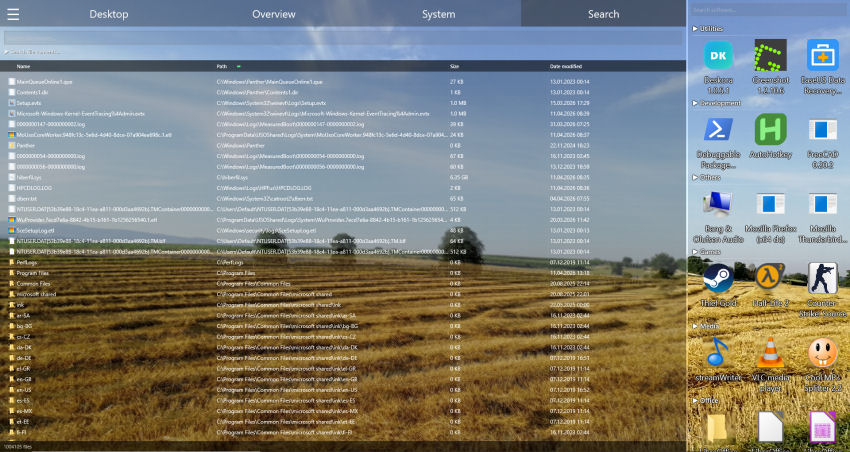
The 100 biggest files in the scope you're viewing, sortable and filterable, using the same fast list view as Deskora's search tab — no separate tool, no separate wait.
📈 What has grown since last time
The question most people actually have is not "what is big?" but "why is the drive suddenly full?". Deskora remembers how your drive looked earlier and shows what has grown since then, with the biggest gains first – so a runaway cache or a folder that quietly doubled in size is obvious straight away.
♻️ Suggestions for what you can free up
A running total of the space you could reclaim right now: old installers left in your Downloads folder, browser and application caches, temporary folders, the Recycle Bin. Deliberately cautious – your own documents and installed programs are never suggested, and anything you remove goes to the Recycle Bin, so nothing is a one-way decision.
🔎 Filters for the big, forgotten files
Narrow the list down to files above a size you choose, or to everything you have not touched in six months, a year or two years. A colour bar breaks the current folder down by type – images, video, documents, archives – and one click on a segment filters by it. The result can be saved as a spreadsheet.
🔗 Hardlinks and junctions handled honestly
NTFS allows the same physical data to appear under more than one path. Deskora does not silently double-count that space, and reparse points (junctions, symlinks) are flagged rather than followed blindly — so the numbers you see are numbers you can trust.
How it works
- Open Deskora and switch to the Storage tab.
- Pick a single drive or all indexed volumes at once.
- The folder tree, sorted by real size, appears immediately — nothing to wait for.
- Switch to the treemap view for a visual overview, or jump straight to the Top 100 list of largest files.
- Right-click any file or folder for the native shell context menu — show in Explorer, or delete to the Recycle Bin.
- Prefer the keyboard? The whole tab works without a mouse: arrow keys, Home and End, Enter to go into a folder, Backspace to go back.
Deskora compared
An honest comparison. Deskora is a free desktop organizer with a Storage tab built in — not a dedicated, feature-maximal disk analyzer. If you need export-to-CSV reporting across a fleet of servers, a specialist tool may still be the better fit. For "why is my C: drive full", Deskora gets there first because it never has to scan.
| Deskora | TreeSize | WizTree | WinDirStat | |
|---|---|---|---|---|
| Requires a scan before showing results | No — reuses existing index | Yes | Yes (fast MFT read) | Yes (full directory walk) |
| Folder tree sorted by size | Yes | Yes | Yes | Yes |
| Treemap view | Yes | Yes (paid tiers) | Yes | Yes |
| Top 100 largest files | Yes | Yes | Yes | Yes |
| Shows what has grown since last time | Yes | Partly (paid tiers) | No | No |
| Suggests what you can safely delete | Yes | No | No | No |
| Also organizes your desktop and searches files | Yes | No | No | No |
| Price | Free | Free / paid tiers | Free | Free, open source |
Who this is for
💻 Anyone with a full C: drive
The single most common reason people search for a disk space tool: Windows says the system drive is nearly full, and nobody can say why. The Storage tab answers that question the instant you open it.
🎨 Content creators and video editors
Project exports, render caches and raw footage pile up fast. A treemap colored by category makes the one bloated project folder obvious without opening every subfolder by hand.
⚙️ Developers and engineers
node_modules folders, build artifacts, old virtual machine images and Docker layers eat disk space quietly. Deskora's Top 100 list surfaces the worst offenders immediately.
Frequently asked questions
Why doesn't Deskora need to scan my drive first?
Deskora already maintains an NTFS index in the background for its instant file search: a small service reads the Master File Table and the USN change journal of your local hard disks and SSDs. The Storage tab is an analysis of that same index — a different view of data Deskora already has, not a new pass over your disk. Network drives are not indexed.
What happens if the background service is not allowed to run?
On managed company PCs the service with administrator rights is sometimes not permitted. Deskora then scans folders directly: the analysis still works, but the first build takes longer and changes do not appear live. On a private PC with the service running, that step does not apply.
Does the size shown for a folder include subfolders?
Yes, folder size is the sum of everything beneath it, computed safely against cycles and orphaned entries so it can never loop or double-count.
What happens with hardlinks and junctions?
Hardlinked data is not counted twice. Reparse points such as junctions and symlinks are shown but not followed automatically, and are marked so you know a shortcut into another location is not being double-scanned.
Can I delete files directly from the Storage tab?
Yes. Deletion always goes to the Recycle Bin, never straight to permanent deletion, and the native Windows context menu is available for every file and folder.
Does this replace TreeSize or WizTree for server administration?
Not necessarily. Those tools have export, reporting and remote-scanning features aimed at IT administrators managing many machines. Deskora's Storage tab is built for "why is my own PC full", answered instantly because the index already exists.
Does analyzing storage slow down my computer?
No. There is no background scanning process specific to the Storage tab — it only reads the index that already exists, and once you close the tab there is no ongoing load.
📊 Find out where your disk space went
No scan. No waiting. Just open the Storage tab.
Download Deskora for free