Why Windows Search does not find your files
"Windows 11 search not working" is one of the most persistent Windows complaints. Usually the search is not broken – it works exactly as designed, and that design does not match what people expect from it. The typical causes:
- Only selected locations are indexed. By default Windows mainly covers user folders such as Documents, Pictures and Desktop. A second drive, a project folder on
D:\or an archive on an external SSD is often missing entirely. - Web and Store results get in the way. For years Bing results and app suggestions appeared ahead of local files. Microsoft is toning this down with the 2026 updates – but unless you adjust the settings, you may not notice much of it.
- The index lags behind or is corrupted. After major updates it is rebuilt; until then results are missing, and sometimes the only fix is a manual rebuild.
- Content is only partly covered. Whether the text of a PDF is found depends on whether the folder is indexed and whether a suitable filter is installed.
The usual advice – open Indexing Options, add locations, rebuild the index, restart the search service – often helps for a while. It does not change the fact that the search depends on a folder list you have to maintain yourself.
🔍 Every drive, no folder list
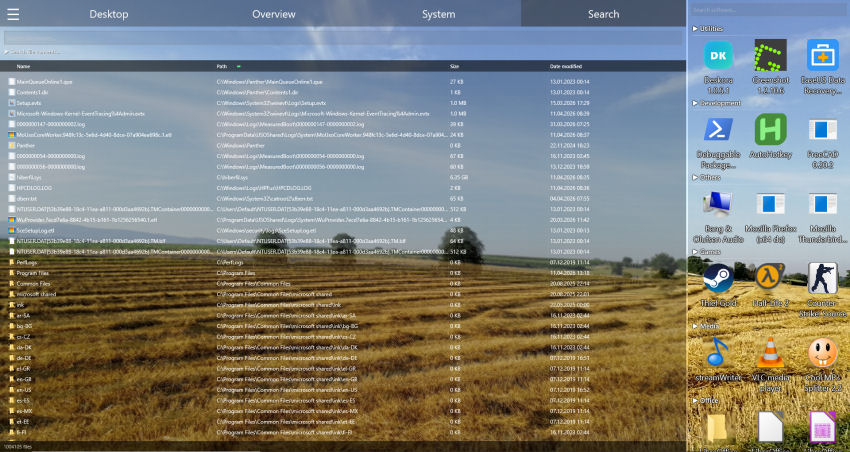
Deskora covers every local NTFS drive automatically – nothing to add by hand.
Download Deskora for freeHow Deskora searches
Deskora does not crawl folder by folder. It reads the Master File Table (MFT) of the NTFS file system and stays current through the USN change journal. That is the same route specialised search tools take – and the reason an entire drive is covered in seconds and new files show up immediately.
⚡ Results while you type
Every character narrows the list. Wildcards like *.pdf or invoice*2026 work, and the list can be sorted by name, path, size and date.
💽 Every local drive
C:, D:, the second SSD, the attached NTFS USB drive – everything lands in the same index without you adding a single location.
📄 Search inside documents
When the name does not help, Deskora also searches the text of PDF, Word, Excel, PowerPoint and OpenDocument files and reports the page, sheet or slide of each hit.
⌨️ Win+Space over any window
Quick search opens with a keyboard shortcut on top of any application and finds programs, files, folders and system locations. It learns from what you pick.
🌐 No web results
Deskora searches your PC and nothing else. No ads, no web search, no store suggestions mixed into your results.
🔒 Search stays local
File search and full-text search never send anything to a server. Search terms, file names and document contents stay on your PC.
Windows Search vs. Everything vs. Deskora
Everything by voidtools is rightly the best-known Windows Search replacement: free, extremely fast, focused on file names. If file names are all you search for, it serves you well. Deskora builds on the same technique but adds content search and an organised desktop.
| Deskora | Windows Search | Everything | |
|---|---|---|---|
| Covers all local drives | Yes, automatically | Indexed locations only | Yes, automatically |
| Results as you type | Yes | Yes | Yes |
| Finds text in PDF and Office | Yes, with page/sheet/slide | Indexed locations only | No (file names only) |
| Web results among hits | No | Depends on settings | No |
| Desktop organisation, timeline, disk analysis | Yes | No | No |
| Price | Free | Included in Windows | Free |
Setting up Deskora as your search
- Download and install Deskora – the installer finishes in under 30 seconds.
- On first start Deskora reads the NTFS indexes of your local drives. Depending on the amount of data this takes seconds, not hours.
- Open the Search tab or press Win+Space and start typing.
- Optionally switch on the document index for content search, limit it to specific folders or exclude folders.
You do not have to disable Windows Search. Both run side by side; if you no longer need Windows indexing, you can turn it off later in Services.
Who benefits most from switching
Several drives
If your projects, photos or archives live on a second drive, the difference is immediate: Deskora finds files there as fast as on C:.
Lots of documents
Contracts, invoices, manuals: when a customer number or error code sits inside the document rather than in its name, only a content search that really reads the PDF will help.
Keyboard people
Win+Space, two letters, Enter. For many users quick search replaces the detour through the Start menu and File Explorer.
Frequently asked questions
Why does Windows 11 search not find my files?
Usually because the location is not listed in Indexing Options, the index is still being rebuilt after an update, or the search puts web and app results ahead of local files. Deskora avoids this because it reads the NTFS index of all local drives directly.
Is Deskora an alternative to Everything?
Yes. Both read the NTFS index and show results as you type. Deskora additionally searches the text of PDF and Office files and adds desktop organisation, a timeline and disk space analysis. If you only search file names and want a minimalist tool, Everything is a good choice too.
Why does the search need administrator rights?
Windows only lets members of the Administrators group read the Master File Table and the USN journal directly. Deskora runs just a small index service elevated; the user interface itself runs with normal rights.
Are network drives or cloud folders searched?
No. Local NTFS hard drives and SSDs are indexed. Network drives and cloud placeholders are deliberately left out so search stays fast and nothing is downloaded by accident.
Does Deskora slow down my PC?
The file name index is read from the MFT and is ready quickly. The optional document index is built in the background at the lowest priority and can be paused or switched off at any time.
Does it run on Windows 10 and Windows 11?
Yes, on both in their 64-bit editions. Deskora is free, needs no account and contains no ads.
More on the shortcut is in the guide to file search with a keyboard shortcut, and details on content search are on the page about full-text search in PDF and Word.
🔍 Find instead of search
Free, no account, no web results – every local drive in one index.
Download Deskora for free