Why C: keeps filling up on Windows 11
A 256 or 512 GB SSD feels generous when you buy it. A year or two later it is full, even though you hardly saved anything on purpose. The usual suspects:
- The Downloads folder. Installers nobody needs after installing, ZIP archives next to their extracted copy, videos from messengers.
- Browser and app caches. Browsers, chat apps, game launchers and creative software keep caches that quietly grow to many gigabytes.
- Temporary files and update leftovers. Windows does not clean up everything by itself, and some programs never do.
- Duplicate files. The same photo archive on the desktop, in Pictures and in a backup folder – the same space three times.
- The Recycle Bin. On Windows, deleted does not mean free until the bin is emptied.
Windows Storage Sense and Disk Cleanup help with temporary files. What they do not answer: why is the drive full right now, and which of the big files are actually yours?
💾 Reclaim space without guessing
Deskora reuses its existing NTFS index – the answer is there the moment you open the tab.
Download Deskora for freeHow Deskora helps you free up space
🧹 Cleanup suggestions with a total
The Storage tab shows a running total of what you could free right away: old installers in Downloads, browser and app caches, temp folders, the Recycle Bin. Your own documents and installed programs are never suggested.
📈 What suddenly grew?
Deskora remembers what your drive used to look like and lists the biggest increases first. The cache that tripled last week is at the top – not buried somewhere in a list of large folders.
🗺️ Treemap and the 100 largest files
A treemap coloured by category exposes the one huge folder. The list of the 100 largest files can be narrowed to anything you have not touched in a year.
👯 Find duplicate files
The duplicate finder checks in three stages – size, partial hash, full hash – and only reports truly identical files. It can be limited to images, videos, music, documents or archives.
🗑️ Always a way back
Deleting only ever moves files to the Recycle Bin. If you made a mistake, restore as usual; the space is truly freed when you empty the bin.
⚡ No scan, no waiting
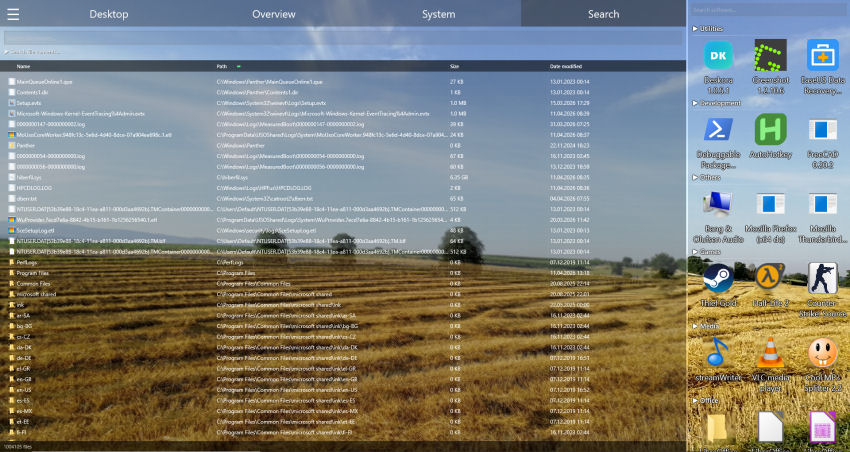
Where classic tools crawl the drive first, Deskora reads the NTFS index it already keeps for instant search. The view is ready the moment you open the tab.
Room on C: again in five minutes
- Install Deskora and open the Storage tab.
- Review the cleanup suggestions: installers, caches, temp files and the Recycle Bin are the fastest gigabytes.
- Check "what grew" to see whether a single folder has got out of hand.
- Run the duplicate finder for images and videos and move surplus copies to the Recycle Bin.
- Filter the largest files to "not touched for a year" and decide what can move to an external drive.
- Finally, empty the Recycle Bin – only then is the space really free.
What you should not delete
Plenty of guides online suggest clearing system folders by hand. We advise against it:
C:\Windows\WinSxS– the component store. Shrink it only with Disk Cleanup or DISM, never manually.pagefile.sysandhiberfil.sys– page file and hibernation file. Large, but managed by Windows.- Folders under
Program Files– remove programs via "Installed apps", not by deleting folders. System Volume Information– restore points. Limit their size in the System Protection settings.
That is exactly why Deskora never suggests those locations in the first place.
Deskora vs. the built-in Windows tools
| Deskora | Storage Sense / Disk Cleanup | |
|---|---|---|
| Temp files and Recycle Bin | Yes | Yes |
| Old installers in Downloads | Yes | Whole folder only, optional |
| Shows what grew recently | Yes | No |
| Largest files on every drive | Yes, with treemap | Rough categories only |
| Duplicate files | Yes | No |
| Price | Free | Included in Windows |
The two are not mutually exclusive: Disk Cleanup remains the right tool for old Windows Update files.
Using the built-in Windows tools properly
Deskora does not replace the built-in tools; it complements them. These steps in Windows 11 are worth doing as well – in this order, from the harmless to the most effective:
- Turn on Storage Sense. Settings › System › Storage › Storage Sense. It clears temporary files and, if you want, the Recycle Bin automatically. Leave the option to delete files in Downloads after a set time on "Never".
- Check Cleanup recommendations. Under Settings › System › Storage › Cleanup recommendations, Windows lists large files you have not used in a while and rarely used apps. A useful second opinion.
- Clean up system files. Classic Disk Cleanup (
cleanmgr) with "Clean up system files" removes old update packages and logs. After big feature updates this often adds up to several gigabytes. - Uninstall apps you do not use. Settings › Apps › Installed apps, sorted by size. Games and creative software are often the biggest single items.
- Limit restore points. Control Panel › System › System Protection › Configure. A few percent is enough for most users.
- Turn off the hibernation file if you never hibernate.
powercfg /h offin an elevated command prompt removeshiberfil.sys, which can be several gigabytes. Windows Fast Startup goes with it.
Typical space hogs at a glance
How much space you can win back depends heavily on the machine. This overview shows where to look first and how risky cleaning up is in each case.
| Location | What is in it | Safe to remove? |
|---|---|---|
| Downloads | Installers, archives, media, documents | Installers and extracted archives yes; check documents first |
| Browser cache | Cached web pages and media | Yes, rebuilt when needed |
| %TEMP% | Temporary files from programs and installers | Yes, as long as the related program is closed |
| Recycle Bin | Files you already deleted | Yes, after a quick check |
| Game libraries | Installed games, shader caches | Uninstall via the launcher or move to another drive |
| Videos and photos | Your recordings, exports, phone backups | Duplicates only; move originals to an external drive |
| Windows Update leftovers | Old update packages, logs | Only via Disk Cleanup |
Move instead of delete
Not everything large belongs in the Recycle Bin. For photo archives, old projects and videos you want to keep, there are better options:
- Second internal drive or external SSD. In the properties of Pictures, Videos or Documents you can set a new location under "Location"; Windows moves the contents along.
- Save new content elsewhere. Under Settings › System › Storage › Advanced storage settings › Where new content is saved you choose where new apps, documents and media go by default.
- Cloud storage with Files On-Demand. OneDrive and similar services can keep files as placeholders only. Note: marking a folder "Always keep on this device" saves nothing.
Deskora's size list, filtered to "not touched for two years", finds exactly the candidates for an external drive.
When a bigger SSD is the better answer
If you still have less than roughly 15 percent free after cleaning up and regularly work with large games, video editing or virtual machines, you are only buying time. SSDs also slow down when very full because they lack free blocks for internal housekeeping. A second or larger SSD is then usually the more economical fix – and Deskora shows you beforehand which folders to take along.
Last updated: September 2026 – checked against the current version of Windows 11.
Frequently asked questions
How do I quickly free up disk space on Windows 11?
The biggest quick wins are usually old installers in Downloads, caches, temporary files, duplicate photos and videos, and the Recycle Bin. Deskora lists these items with a total and only ever deletes to the Recycle Bin.
Why is my C: drive suddenly full?
Often a single folder has grown a lot – an app cache, a game update or a video export. Deskora compares against an earlier state and lists the largest increases first.
Will Deskora suggest deleting my documents?
No. Your own documents and installed programs are never shown as cleanup suggestions. You will see large personal files in the size list, but the decision there is yours.
Can I restore deleted files?
Yes, as long as the Recycle Bin has not been emptied. Deskora never deletes permanently; it always moves files to the Recycle Bin.
Does it work for D: and external drives?
Yes, for every local NTFS drive Deskora indexes. Network drives and cloud folders are not included.
How much free space should I keep on C:?
As a rule of thumb at least 10 to 15 percent, and on small SSDs preferably 20 to 30 GB in absolute terms. Windows feature updates need extra room while installing, and SSDs perform better with headroom.
Can I delete the WinSxS folder?
No. WinSxS holds components Windows needs for updates and repairs. It can only be shrunk with Disk Cleanup or DISM /Online /Cleanup-Image /StartComponentCleanup.
Why is space not freed after deleting files?
Usually the files are still in the Recycle Bin, or a program keeps them open. Restore points can also hold on to deleted data for a while. Emptying the bin and closing the program solves most cases.
How much does Deskora cost?
Nothing. Deskora is free, with no subscription, no account and no ads, and runs on Windows 10 and Windows 11 (64-bit).
To understand in detail what is using your space, see the disk space analyzer page, and everything about duplicates is on find duplicate files on Windows.
💾 C: free again
Free, no account – and anything you delete goes to the Recycle Bin first.
Download Deskora for free