What Recall does – and why many people turn it off
Recall is Microsoft's answer to a real question: "Where did I see that?" It saves snapshots of your screen at short intervals, analyses them with AI and makes them searchable. Technically impressive – and exactly why it is controversial:
- It captures the whole screen. Not just your files but everything visible: chats, emails, bank statements, forms, other people's content in video calls.
- Filters are never perfect. Recall tries to leave out sensitive content such as passwords. Whatever a filter does not recognise as sensitive still ends up in the history.
- Copilot+ PCs only. Recall requires an NPU and matching hardware. On most existing Windows 10 and Windows 11 machines it is not available at all.
- Companies and privacy advocates are cautious. Many IT departments disable Recall by policy, and "how to disable Recall" is one of the most common questions about the feature.
Turning it off does not make the underlying need go away, though: you remember when you worked on something, not what the file was called.
🕒 Find things again without screenshots
Deskora records file paths and times – never your screen.
Download Deskora for freeHow Deskora helps you find things again
Deskora's Timeline tab is a timeline of your files. Instead of images it stores a plain list: which file, which path, when, and what happened to it.
📅 Day by day, going back
Today, yesterday, last week, last month – and month by month beyond that. Because Deskora also uses the timestamps of the NTFS index, the timeline reaches years back from day one.
📄 What happened
Each row shows whether a file was opened, created, modified, downloaded or deleted. Filters by category and event type narrow a day down quickly.
📊 Which program, how long
A daily view shows how long each application was in the foreground – with no scoring and no daily goals.
🔍 Plus search inside documents
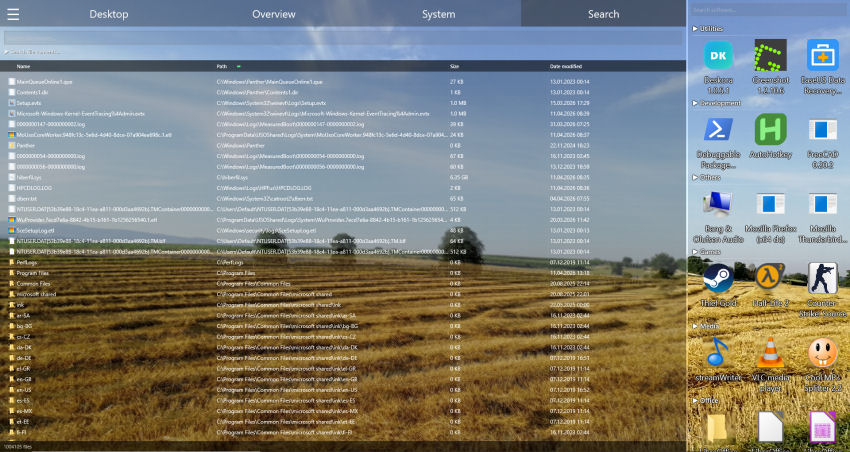
If you remember a sentence but not the day, use full-text search: Deskora finds text in PDF, Word, Excel, PowerPoint and OpenDocument files on every local drive.
Recall vs. Deskora
| Deskora | Windows Recall | |
|---|---|---|
| What is recorded | File paths, event type, time, program run time | Regular screen snapshots |
| Screen contents, chats, web pages | No | Yes |
| Hardware | Any PC with Windows 10/11 (64-bit) | Copilot+ PCs only |
| Storage | Readable text file on your PC | Local, encrypted |
| How far back | Years, thanks to NTFS timestamps | From activation, limited by disk space |
| Switch off and delete | One switch in the tab; delete all or per time range | In Windows Settings |
| Price | Free | Part of Windows 11 on Copilot+ PCs |
To be fair: Recall can do things Deskora deliberately cannot. If you want to find a web page or a chat message from last week, a file history will not help. For the most common question – "which file was it?" – you do not need screenshots.
Privacy in Deskora's history
- Nothing is transmitted. The record lives in
%APPDATA%\Deskora\activity.tsv, is never uploaded and is not part of any crash report. - Plain text on purpose. You can open the file and check for yourself what is in it.
- Automatic expiry. 90 days by default, adjustable between 7 and 365 days.
- Exclusions apply retroactively. An excluded folder is not just ignored from now on – anything already recorded from it disappears immediately.
- No keystrokes, no window contents, no clipboard, no browser history.
How to switch
- If you like, turn off Recall in Windows Settings under Privacy & security and delete existing snapshots.
- Download and install Deskora – free, no account.
- Open the Timeline tab. The first-run notice explains what is recorded and where to switch it off.
- Optionally add folders and programs under Settings › Activity that should never be recorded.
Frequently asked questions
Is there a Recall alternative without screenshots?
Yes. Deskora only records file paths, event type, time and program run time and never captures your screen. That lets you find files again by the day you worked on them.
Does Deskora work without a Copilot+ PC?
Yes. Deskora needs no NPU and runs on any PC with 64-bit Windows 10 or Windows 11, including older machines.
How do I disable Recall?
Under Settings › Privacy & security › Recall & snapshots you can turn off saving snapshots and delete the existing history. In managed environments IT usually controls Recall through Group Policy.
Can I use both at the same time?
Yes. Deskora and Recall do not interfere with each other. Many people use Deskora precisely because they want to keep Recall switched off.
Does Deskora find web pages or chat messages?
No, and that is intentional. Deskora records neither browser history nor window contents. Downloaded files, on the other hand, do appear in the history and can be filtered.
How much does Deskora cost?
Nothing. Deskora is free, with no subscription, no account and no ads.
Every detail of the Timeline tab is on the page about recently used files on Windows. If you remember the content rather than the day, use full-text search in PDF and Word.
🕒 Remember without surveillance
Free, no account, no screenshots – and your history never leaves your PC.
Download Deskora for free